A successful ink replacement begins before you open the package. Match the supply to the complete printer model, read the instructions supplied with that particular product, and identify the procedure in your printer manual. Those checks matter more than a cartridge’s shape, the color of its label or a familiar number on the box.
Acaves products include several different supply systems. Black and tri-color cartridges, individual color tanks and refill bottles require different handling. Some products also have specific chip requirements. A method that works for one family should not become a shortcut for every other printer.
This guide explains how to approach installation, distinguish recognition problems from print-quality problems, and store spare supplies sensibly. Printer instructions cited here describe the manufacturers’ equipment and original supplies. They do not establish compatibility, warranty coverage or performance guarantees for an Acaves replacement.
Identify the printer before identifying the problem
Write down the full printer model from its label or settings screen. Include suffixes such as “e,” and check the country or region for which the printer was supplied. Then compare that information with the exact Acaves product’s compatibility list.
A family name is not enough. Two printers sold under a similar name can use different supplies. Regional variations also matter. HP’s cartridge replacement guidance for ENVY 6000 and Pro 6400 printers, for example, lists different cartridge numbers for different markets. A cartridge that fits a related printer elsewhere is not automatically suitable for yours. HP regional cartridge and replacement guidance
Check the product itself when the delivery arrives. The package, cartridge markings, colors and quantity should agree with the item ordered. Keep the packaging until installation and the first print check are complete. It provides useful evidence if the wrong version arrived or a component is damaged.
Before purchasing another set to solve an error, establish whether the existing set is actually the correct one. Our guide to choosing printer ink explains how to compare printer models, cartridge families, pack contents and use cases.
| Acaves supply family | Format to expect | Installation detail to verify |
|---|---|---|
| 63XL, 65XL and 67XL | Black and tri-color combinations | Correct family, region and cartridge position |
| 910XL and 962XL | Four individual colors | Exact printer compatibility and chip restrictions |
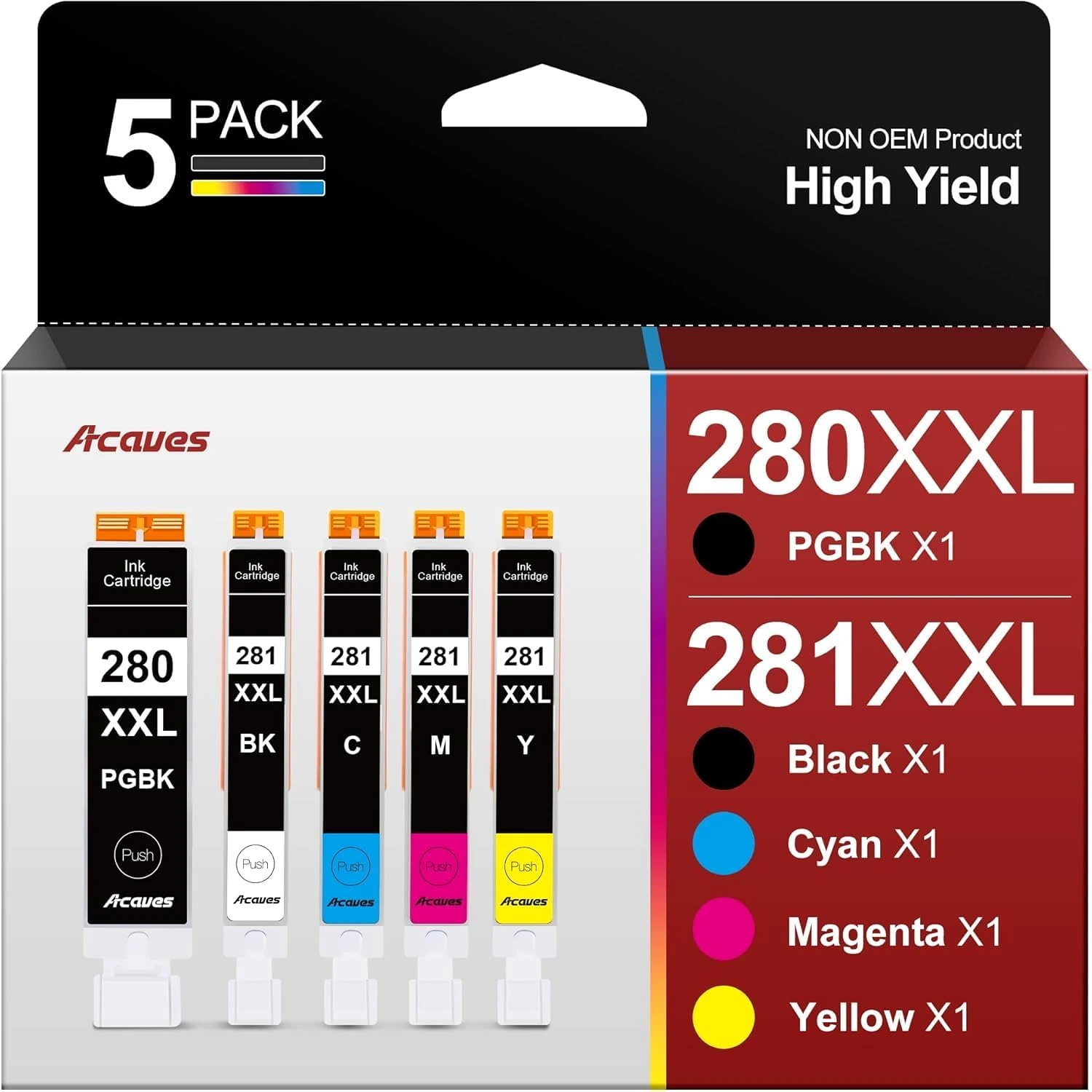
| 280XXL and 281XXL | Five-cartridge combination | Correct position for each black and each color |
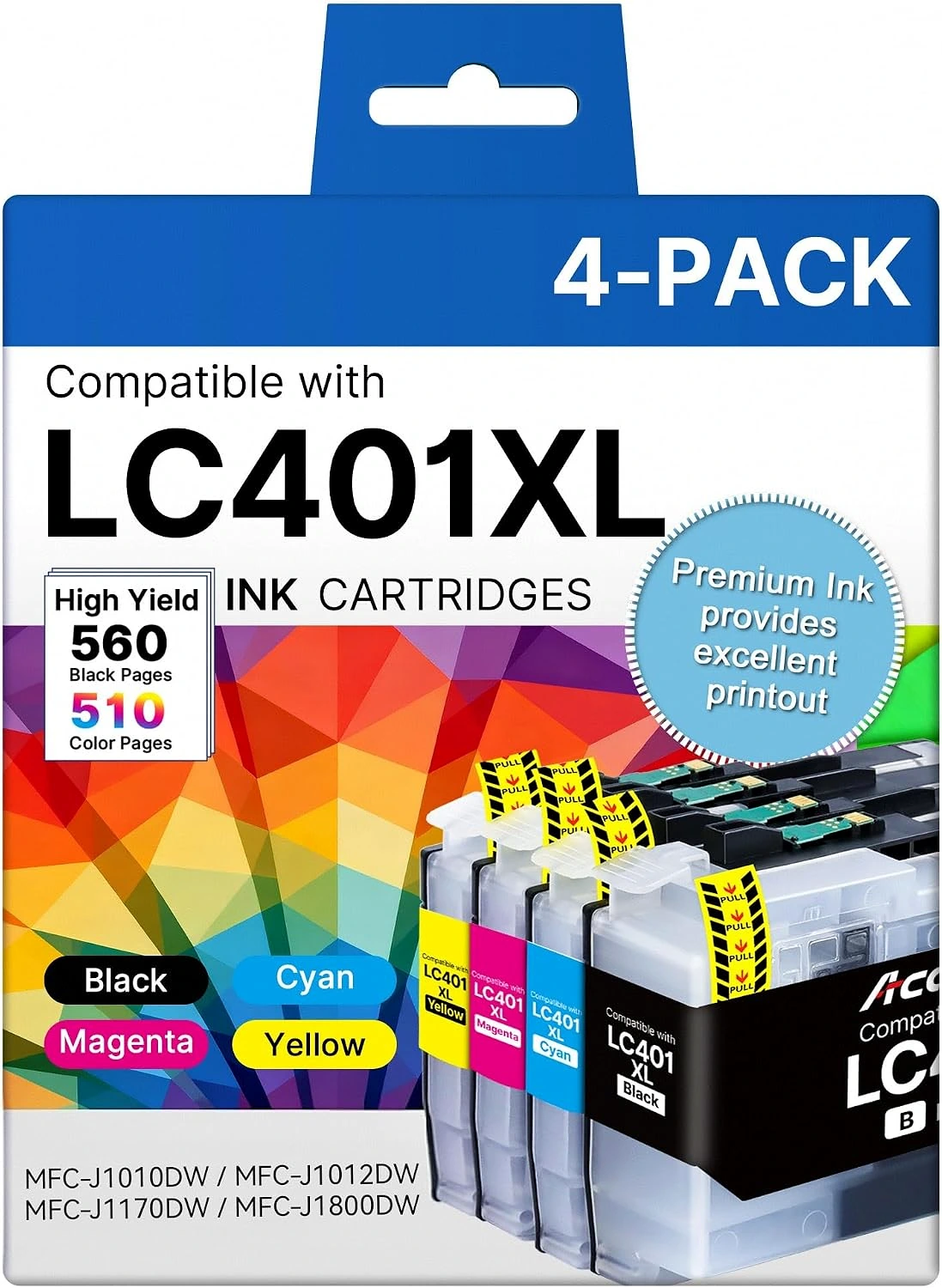
| LC401XL | Four individual colors | Correct color position and recognition requirements |
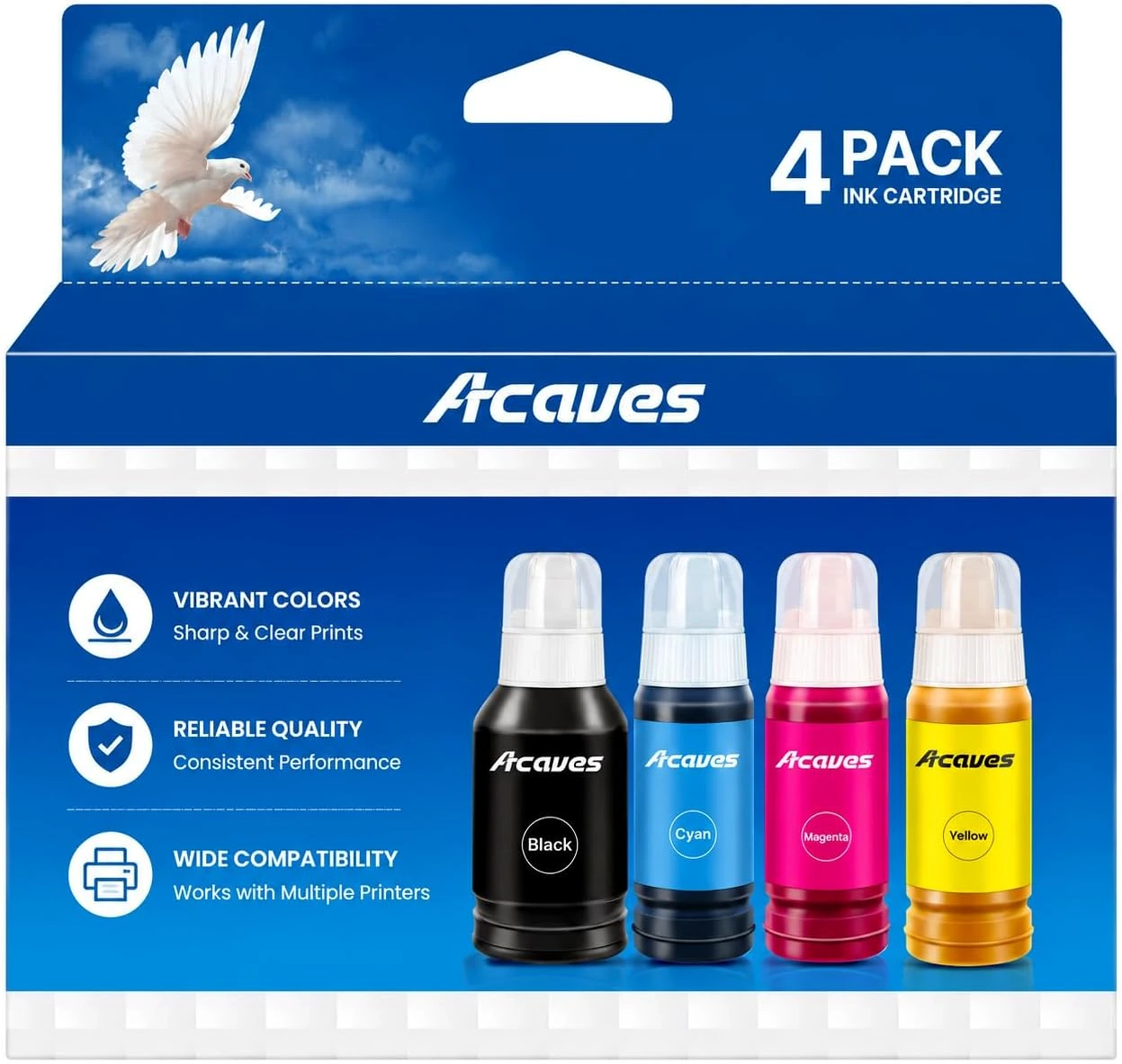
| 502 | Refill bottles | Exact bottle specification and tank compatibility |
| Chipless 923 versions | Cartridges requiring transferred chips | Suitable donor chips and supplied transfer instructions |
This table describes product formats. It does not make the families interchangeable or replace the compatibility information for an individual product.
Prepare a small, practical workspace
Finish or cancel active print jobs before starting. Have the replacement supply, printer manual and a sheet of suitable plain paper nearby. Give yourself enough light to read the cartridge markings and distinguish the slots.
Open only the supply you are ready to install. If you are replacing several colors, work systematically so that a removed cartridge cannot be confused with its replacement. A simple note identifying the color and product number is more useful than relying on the order in which packages were placed on the desk.
Check for visible leakage, a broken latch, a damaged seal or loose components before installation. Photograph an obvious defect and seek order support instead of trying to repair it with adhesive, tape or an improvised part.
Follow the printer’s procedure for bringing its cartridge holder into position. Wait for moving components to stop. Do not pull a carriage across the printer or reach into a mechanism while it is moving.
Protect nearby paperwork and other belongings from accidental staining. Keep bottles, loose caps and cartridges away from children and pets throughout the replacement.
Installing black and tri-color combinations
For Acaves 63XL, 65XL or 67XL combinations, begin with the instructions for your exact printer. The number on the replacement must match the required family; “XL” does not turn one family into another.
Read the replacement’s packaging directions before removing protective material. Remove only the designated tape, cap or other shipping protection. Avoid touching exposed electrical contacts or ink outlets, and do not put removed protective tape back over them.
HP’s instructions for the ENVY 6000 and 6400 families illustrate why model-specific directions matter: they describe a particular access door, carriage movement and cartridge latch. They also warn against touching contacts or nozzles and reapplying protective tape. Another printer may use a different retaining mechanism. HP installation instructions
Place each cartridge in the position specified by the printer, secure its latch and close the access area. Follow any alignment or initialization prompt that appears.
Keep the first test simple. A short document containing ordinary black text and a small color element can show whether both supplies are participating in a normal job. If the printer reports an error before printing begins, investigate that message before starting print-quality maintenance.
Installing individual color cartridges and tanks
Acaves 910XL, 962XL, LC401XL and Canon-compatible 280XXL/281XXL products use separate color supplies. That makes the position of every component important.
Match the cartridge label to the printer’s slot label. With a five-cartridge Canon-compatible pack, pay particular attention to the two black supplies. Do not assume that two cartridges containing black ink belong in equivalent positions.
Canon’s TR8600 instructions describe removing the designated tape and film, keeping the vent unobstructed, avoiding the open ink port, and pressing the tank into its labeled position. Canon also specifies that all tanks must be installed. Use those directions only where they match your printer and the replacement product’s packaging. Canon TR8600 tank replacement
A cartridge should be seated through its intended mechanism. If it resists unexpectedly, withdraw it carefully and recheck the model, orientation and packaging. Additional force is not a useful compatibility test.
For LC401-family printers, a continuing replacement message may concern detection rather than ink flow. Brother’s guidance for the MFC-J1010DW and MFC-J1170DW distinguishes cartridge identification and installation from further support steps. Brother replacement-message guidance
Treat chipless 923 cartridges as a separate installation
A chipless cartridge is not ready to use in the same way as a cartridge supplied with its required chip. If your particular Acaves 923 product requires chip transfer, read the included instructions before removing anything from the existing cartridge.
Confirm that you have the donor cartridge specified by those instructions, that its chip is suitable, and that you understand the required orientation. Do not assume that an unrelated cartridge provides an interchangeable chip.
If the instructions are missing, the donor chip is damaged or the transfer method is unclear, contact order support before proceeding. Avoid scraping circuitry, improvising electrical connections or gluing a chip into an uncertain position.
A transferred chip does not establish HP+ compatibility. Nor does a cartridge fitting the slot prove that the printer will accept its electronics.
After a transfer, any displayed ink information must be interpreted according to the product instructions and printer behavior. Do not promise yourself a fresh, accurate ink gauge simply because the cartridge body contains new ink. Record any warning exactly so support can assess the specific combination.
Refilling with 502 bottles
Refill bottles require a different preparation process. Confirm the exact printer model, bottle specification and color before opening a tank. Do not choose a refill solely because its bottle resembles one previously used.
For an Epson ET-2850, the manufacturer’s refill procedure includes a printer-menu sequence, checking the tank color and using the correct filling port. Its instructions explain that the printer estimates ink consumption rather than directly measuring the liquid level. Physical inspection of the tank therefore remains important. Epson ET-2850 refill procedure
When using an Acaves replacement bottle, verify both its own filling instructions and the printer’s requirements. Do not assume that a replacement bottle has the identical valve or stopping mechanism shown for the original bottle.
Work on one color at a time. Check the label again immediately before filling. Keep the bottle stable, observe the indicated fill limit and avoid squeezing ink into a system that does not call for it.
If the wrong color or an uncertain ink has entered a tank, stop. Do not keep printing in the hope of clearing it, and do not dilute it with another liquid. Seek model-specific service guidance.
After filling, complete only the ink-level confirmation or reset that the printer manual calls for. A reset should reflect the refill actually performed, not an attempt to silence an unexplained warning.
Allow initialization, then read the message precisely
A printer may perform initialization, alignment or other activity after a supply change. Let the instructed process finish. Opening the cover repeatedly or interrupting power can make it harder to identify the original issue.
Distinguish a prompt asking for acknowledgment from an error that prevents operation. Read the complete message before choosing a button. “Low ink,” “cartridge missing,” “incompatible cartridge” and “printer offline” describe different situations.
Record whether the problem appeared immediately after installation, after a successful first job or after another change. That sequence can narrow the investigation.
For example, a printer that reports an incompatible cartridge before producing a page needs a compatibility and recognition check. A printer that accepts the cartridge but prints a page with missing cyan needs a print-quality investigation. A computer that cannot find the printer may have a connection problem unrelated to the replacement.
Photograph the display or capture the software message. Exact wording is more useful than “the new ink does not work,” especially when another person needs to diagnose the issue remotely.
Choose the next check from the symptom
| What happens | Useful first check | Avoid jumping straight to |
|---|---|---|
| Cartridge is not recognized | Model, region, position, seating and required chip | Repeated printhead cleaning |
| One color is missing | Supply status and the printer’s diagnostic pattern | Replacing every cartridge |
| Text is clear but a photograph looks wrong | Paper setting, color settings and the source image | Assuming all ink is defective |
| Job remains in a queue | Printer status, connection and selected destination | Opening new supplies |
| Ink leaks during handling | Stop and inspect the affected product | Continuing installation |
| Tank level and software estimate disagree | Physical level and correct refill procedure | Repeatedly resetting the estimate |
Use the table to select a starting point, then follow the applicable manual. It is not a universal repair sequence.
Change one relevant factor at a time where practical. If you reseat cartridges, change paper, alter driver settings and run several cleanings together, a later improvement will not reveal which action helped. That makes future decisions harder and can consume supplies unnecessarily.
Handle firmware and HP+ restrictions directly
Compatibility can involve electronics and printer configuration as well as dimensions. HP explains that some printers use dynamic security and that firmware updates can affect cartridges using non-HP chips or circuitry. A replacement accepted previously may therefore encounter a different result later. HP cartridge compatibility guidance
That is not a reason to follow a generic instruction to disable updates, install unofficial firmware or downgrade the printer. Such actions are not a substitute for identifying the exact model, current configuration and product requirements.
HP+ is another distinct consideration. HP states that once HP+ is activated, the printer requires Original HP Ink for its lifetime. Ending an ink subscription does not remove that HP+ requirement. HP+ requirements
If your printer is enrolled, do not assume that an Acaves cartridge, a transferred chip or a seller’s broad family description overrides those conditions. Check the specific product exclusions before installation.
When requesting help, provide the printer model, exact error and relevant configuration. Report a recent firmware change if you know one occurred; do not guess.
Check print quality before cleaning
Begin with an observation: what is wrong on the page? Missing lines, a missing color, misaligned edges and an unexpected color balance are different symptoms.
Use the printer’s own nozzle check or print-quality diagnostic where its manual recommends one. A diagnostic separates the printer’s basic output from the particular document or application being used.
Canon’s TR8600 guidance for absent ink starts with supply status and protective packaging, then uses a nozzle check to decide what comes next. It does not treat every poor print as an immediate reason for intensive cleaning. Canon ink-output troubleshooting
If the diagnostic looks correct, compare the document settings, selected paper and application. Print a simple file from another application if that helps distinguish a document-specific issue.
Keep the diagnostic sheet and mark the date or action taken. Comparing a before-and-after pattern is more reliable than remembering that a page “looked a little better.”
For photography, assess a representative small print before committing to a large batch. Include skin tones, a neutral area and details that matter to the intended image.
Use cleaning as a measured response
Printhead cleaning consumes ink. Run it because the diagnostic and manual indicate a need, not as a routine celebration of installing new supplies.
Canon’s TR8600 cleaning instructions call for examining a nozzle pattern and using cleaning when the pattern shows relevant defects. They also specify a follow-up check. The associated printer utility distinguishes ordinary cleaning from deep cleaning, which consumes more ink. Canon cleaning procedure, Canon maintenance utility
Do not turn one model’s permitted sequence into a universal number of cleaning cycles. Follow its stopping points, ink requirements and waiting instructions. If the prescribed process fails, escalation may be appropriate.
Avoid household cleaning recipes. Canon’s TR8600 manual specifically warns against rinsing or wiping its printhead and ink tanks. That is a useful reminder that a delicate component should not be treated like an ordinary washable object. Canon TR8600 manual
Manual contact cleaning, where a manufacturer prescribes it for a particular error, is also different from washing a printhead. Use only the procedure applicable to the actual printer.
Store supplies according to their format
Keep unopened supplies sealed until needed and retain their labels. Follow the storage conditions and dates on the actual product. A printer manual’s recommendation for original ink is not an independently verified shelf-life claim for an Acaves replacement.
Opened cartridges, installed tanks and refill bottles are not one storage category.
HP’s handling guidance for genuine supplies recommends prompt reinstallation of removed cartridges. Where opened supplies must be stored outside the printer, it describes an airtight plastic tub, expressly rejects a plastic bag, and gives component-specific orientation instructions. It also warns against touching nozzles or placing tape over them. Do not apply an abbreviated version without checking the full directions. HP handling and storage guidance
Epson’s ET-2850 bottle guidance instead emphasizes upright handling, secure closure, suitable ambient storage and avoiding sunlight and temperature extremes. Its transport instructions may use a bag as secondary containment for a bottle. That does not conflict with HP’s advice about exposed cartridges; the objects and circumstances differ. Epson bottle precautions, Epson transport and storage manual
Do not remove installed supplies merely to store them between ordinary print jobs. Consult the manual before an extended absence or moving the printer.
A practical routine for occasional printing
Suppose you print tickets, forms and a few household documents, with quiet periods between jobs. Your main priority is having the correct supply available when needed.
Keep a modest reserve that you can identify easily. Leave it sealed and note which printer it belongs to. Buying several unrelated cartridge families “just in case” increases the chance of opening the wrong one later.
Before an important deadline, check the printer early enough to resolve a problem. A short representative document can reveal a connection issue or poor output while there is still time to act.
There is no universal weekly printing rule in this guide. Use the maintenance and inactivity instructions for your equipment. If output has deteriorated after a quiet period, start with the appropriate diagnostic instead of immediately running repeated cleaning cycles.
A practical routine for a home office
For a home office, record the product number that actually works with your exact printer and configuration. Keep that information beside the reorder record so another person can obtain the same specification.
When a replacement arrives, verify it before the existing supply is exhausted. Verification can remain a packaging check; there is no need to open every spare.
After installation, test the kinds of pages the office uses: readable text, a table, a small logo or another ordinary color element. Check both the first sheet and any relevant duplex settings before releasing a large job.
If a problem appears, preserve the failed page and error message. A short record of the installation date, affected color and actions already attempted prevents coworkers from repeating the same troubleshooting and spending more ink without gaining information.
A practical routine for photo printing
Photo output depends on more than a cartridge change. The file, paper, selected media type and color settings all influence the result.
Epson’s ET-2850 incorrect-color guidance asks users to check paper type and grayscale settings, then examine nozzle performance where needed. It also explains that printed color and screen color will not match exactly and that prints need time to dry before assessment. Epson incorrect-color guidance
Choose a small test image and keep the settings consistent while evaluating a replacement. Comparing different photographs on different papers tells you little about the ink itself.
Avoid making archival, fade-resistance or waterproof claims from a fresh print that merely looks attractive. Those properties require relevant evidence. Our guide to ink types explains the distinction between intended use, ink formulation and the results you can reasonably evaluate at home.
Prepare useful information for order support
When a product remains unusable, contact support through the order channel or the contact details actually supplied with that purchase. Do not assume that a similarly named website represents the seller.
Provide the full printer model, product number, color affected, order reference and exact error message. Add clear photographs of relevant labels and any visible damage. For print-quality problems, include the diagnostic sheet and a short account of the maintenance already performed.
State the sequence plainly: for example, “The black cartridge was accepted, but cyan is reported as missing immediately after installation.” That is more actionable than claiming the entire pack is defective.
Keep private account details out of public comments. Share purchase records through the appropriate support channel.
A replacement, refund or warranty outcome depends on the applicable terms and facts. This guide does not promise a particular remedy. If the evidence points to a printer mechanism or printhead fault, the next step may be the printer manufacturer or a qualified service provider.
Questions that commonly arise
Should every cartridge be changed when one color runs out?
Follow the printer’s requirements and the supply format. Individual cartridges and combined tri-color units work differently. Do not infer from a multipack that every component must be replaced together.
Does a cartridge error prove that the ink is bad?
No. An error can concern the product number, region, seating, chip, printer configuration or another condition. HP’s troubleshooting guidance separates several error categories for this reason. HP cartridge-error guidance
Can I clean repeatedly until the page improves?
Use the model’s specified sequence and stopping point. Cleaning consumes ink, and a problem caused by incompatibility, an empty supply or incorrect settings will not necessarily respond to it.
How long will an opened Acaves cartridge last?
There is no single verified lifespan covering every product and use pattern here. Follow the actual product instructions and printer guidance. Storage, usage and operating conditions matter; an advertised page yield is not a calendar-life promise.
What should I do before a large or important job?
Confirm the printer is ready, check the required supplies and print a representative sample. If the sample is acceptable, continue with the intended settings. If it is not, diagnose that specific result while keeping unnecessary changes to a minimum.