Choosing printer ink becomes easier when you separate three questions: what fits your printer, what kind of ink the printing system expects, and what you want the finished page to do. Those questions are connected, but they are not interchangeable. A larger bottle does not establish compatibility. A cartridge described as black does not necessarily serve the same purpose as another black cartridge. A photograph of a colorful print cannot tell you how an ink will behave on your paper.
Start with the printer model and its specified consumable family. Then examine the cartridge or bottle format, the colors included, and the information available about the particular replacement product. Finally, match your paper and print settings to the job.
This guide explains how those decisions fit together, using Acaves cartridge and bottle families as practical shopping examples. It also distinguishes ordinary document and photo printing from sublimation, a separate process with its own equipment and materials.
Three descriptions that answer different questions
“Dye,” “pigment,” and “refill” do not describe three competing ink technologies. Dye and pigment describe how colorants exist in an ink formulation. Refill describes how ink is supplied to the printer.
A refill bottle could contain a formulation intended for a particular tank printing system. A cartridge could contain a different formulation intended for another system. The package format alone does not identify the chemistry or prove that the contents are suitable for your machine.
Keep these distinctions in mind when comparing listings:
| Description | What it tells you | What still needs checking |
|---|---|---|
| Dye ink | The colorant is dissolved in the liquid formulation | Exact printer compatibility, media guidance, and product-specific performance |
| Pigment ink | The colorant uses dispersed particles | Exact printer compatibility, intended channel, and product-specific performance |
| Refill bottle | Ink is supplied for a refill process | Bottle family, supported printer models, color, and filling instructions |
| Cartridge | Ink arrives in a replaceable consumable unit | Cartridge family, printer model, region, capacity, and installation requirements |
| Sublimation ink | Ink belongs to a heat-transfer printing process | Dedicated system compatibility, transfer media, and suitable blanks |
The useful shopping question is therefore more precise than “Which type is best?” Ask which exact product belongs in the printing system you already own.
What dye and pigment actually mean
In a dye formulation, the colorant is dissolved in the carrier liquid. In a pigment formulation, fine colorant particles are dispersed in that liquid. The difference influences how the ink interacts with paper and how a manufacturer designs the overall printing system.
Canon explains these two approaches in its overview of inkjet ink technology. That distinction is useful background, but it is not a complete shopping rule. An ink formulation also includes other ingredients, and the result depends on the printer, media, settings, and intended use.
Avoid treating a single chemistry label as a universal quality score. It cannot independently establish color accuracy, scratch resistance, outdoor suitability, water resistance, or display life. Those are specific performance questions that require evidence for the actual ink and media combination.
For a compatible replacement, look for information about that replacement. An original printer manufacturer’s explanation can establish how its own system works; it does not verify another supplier’s formulation.
Why one printer can have two black inks
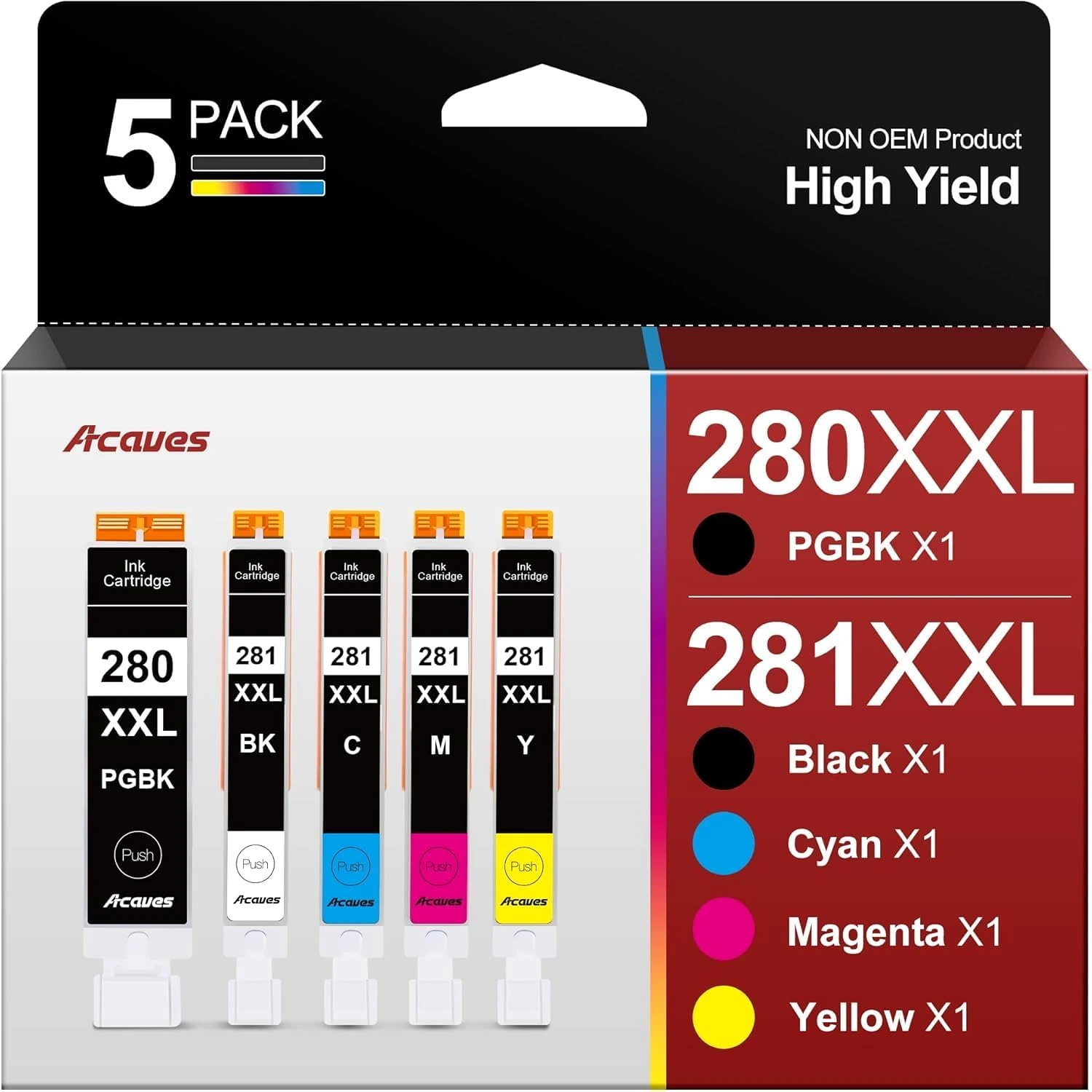
A five-color cartridge set can seem puzzling when the familiar four printing colors are black, cyan, magenta, and yellow. The extra position may be a second black channel serving a different role.
Canon’s original PGI-280 and CLI-281 system illustrates the distinction. Canon identifies PGI-280 as pigment black for text documents and the CLI-281 inks as dye based for photographs and images. Its five-color set includes both black channels alongside cyan, magenta, and yellow. Canon’s PGI-280/CLI-281 product description
The practical lesson is to follow the slot labels. PGBK and BK are separate identities, not two interchangeable names for the same cartridge. Their presence also does not mean you should manually choose between them for each document. Use the printer’s supported paper and quality settings.
The Acaves 280XXL/281XXL five-color set includes PGBK, BK, C, M, and Y. That establishes its listed channel arrangement. It does not, by itself, verify that its chemistry duplicates Canon’s original inks.
Read the whole cartridge code
The numbers and letters printed on a cartridge package carry more useful information than its size or appearance. Begin with the complete family, then check the exact printer model in the product’s compatibility information.
Within the Acaves range, 63XL, 65XL, and 67XL sets use a black cartridge plus a tricolor cartridge. Other available families use four separate cartridges, including 910XL, 962XL, 923XL, and LC401XL. The 280XXL/281XXL set uses five cartridges.
These are distinct families. A shared color count or similar package shape does not make one a substitute for another. Capacity letters also do not turn an unrelated family into a compatible choice.
Write down the printer’s model before browsing. If you are replacing an existing cartridge, photograph its full label as a second reference. Resolve any disagreement between the printer model, the installed consumable, and the listing before opening a new package.
The printer ink selection guide provides a step-by-step compatibility checklist.
Cartridge formats change how you shop
A black-and-tricolor set and a set of separate color cartridges organize replacement differently. With a tricolor cartridge, the color inks are supplied together in one unit. With individual cartridges, the colors occupy separate consumable positions.
That difference matters when comparing pack contents. Two packages described as “complete sets” may contain different numbers of pieces because they serve different printers. Compare the actual color arrangement rather than assuming more pieces means more ink or better value.
A useful shopping note looks like this:
- Printer model and regional version.
- Required cartridge or bottle family.
- Colors needed now.
- Whether the package includes a full set or selected colors.
- Any product-specific capacity or yield information.
- The date and condition of an unopened spare already on hand.
This simple record helps prevent buying a full set when you meant to replace one color, or ordering a partial pack while assuming it contains every required position.
What the 502 bottle label tells you
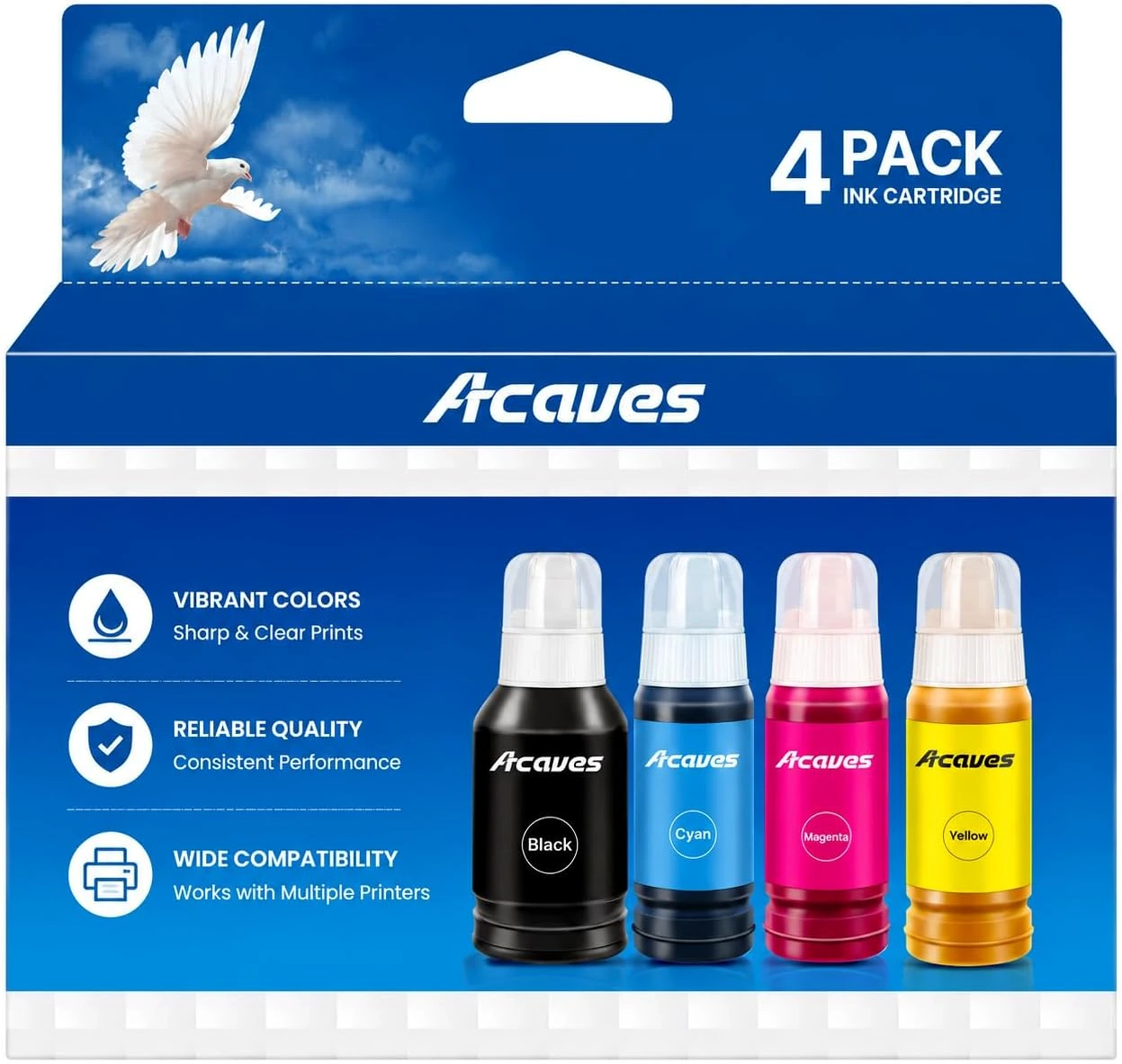
The Acaves 502 offering is a four-bottle set containing black, cyan, magenta, and yellow. Its listed compatible models include ET-2850, ET-3850, ET-2760, ET-4850, ET-4760, and ET-15000, among others. Confirm the exact model on the particular product page before ordering.
For the United States, Epson lists 502 black and color bottles for the ET-2850. That supports the connection between the US printer and that consumable family, but it does not establish that every Epson tank printer uses 502. Epson ET-2850 ink information
Keep the printer’s regional documentation in view as well. Similar printer names can appear in different markets with different consumable codes. A search result from another country should not override the manual supplied for your machine.
The Epson-compatible ink collection is a useful starting point, followed by the exact product compatibility list. “EcoTank ink” alone is too broad a description for a purchase decision.
Check the printer before opening the bottle
A refill is a good moment to slow down and verify the setup. Place the bottle beside the printer and compare the family and color labels before removing its cap.
Use the printer’s model-specific instructions for opening the tank area, positioning the bottle, monitoring the level, and closing the tank afterward. Do not treat a video for a different model as a complete substitute.
For the ET-2850, Epson explains that the low-ink system estimates usage rather than directly measuring the liquid in the tanks. Its instructions call for regular visual checks so levels do not fall below the lower line. Follow the documented refill and ink-level procedure for your own printer. Epson ET-2850 refill instructions
Keep the process easy to check: handle one color at a time, read the tank label, and confirm the bottle label again. If the fit or flow differs from the product instructions, stop and investigate instead of forcing the connection.
Match the system to the job
The right consumable must first fit the printer. After that, the printing task determines which media and settings deserve attention.
| Printing task | Main decision | Useful first check | Evidence to avoid assuming |
|---|---|---|---|
| Letters and forms | Legibility on the chosen plain paper | Correct family, normal document setting, clean sample page | A chemistry label alone guarantees sharper text |
| Color worksheets | Clear labels and distinguishable colors | Readable source file and accurate paper setting | Every color-heavy page matches a published yield |
| Photo prints | Suitable photo paper and consistent color handling | Supported media, printable side, one test image | Any ink and glossy paper combination has proven longevity |
| Home organization labels | Compatible printable label stock | Printer support and label manufacturer instructions | Ordinary ink automatically makes a waterproof label |
| Repeated graphics | Consistent workflow | Saved settings and a reference print | Matching names guarantee matching colors across materials |
| Sublimation projects | A compatible transfer system | Dedicated equipment, ink, paper, and appropriate blanks | Ordinary 502 ink is a sublimation substitute |
Before a large job, decide what a successful page needs to do. A school worksheet and a framed photograph require different checks even when they come from the same printer.
Paper is part of the printing system
Paper is more than a surface that catches ink. Its coating, finish, thickness, and intended printing technology affect how you should use it. Begin with media that the printer supports, then select the matching setting in the driver.
For routine documents, inspect a sample for feathered text, show-through, and handling marks. For a photograph, inspect shadow detail, skin tones, and smooth gradients after the print has had the drying time specified by the media supplier.
Do not judge an unfamiliar ink using several unfamiliar papers at once. Choose one supported paper and keep it constant while checking basic operation. Otherwise, you cannot tell whether a change came from the ink, the media, or the settings.
Keep the original paper packaging when practical. It can identify the printable side, recommended settings, storage guidance, and drying instructions. A loose stack of unmarked glossy sheets makes repeatable printing much harder.
Ordinary dye ink is not sublimation ink
The word “dye” appears in both ordinary inkjet discussions and dye-sublimation printing, but the systems are not interchangeable.
Epson describes sublimation as a workflow that prints a design onto transfer paper, then uses heat to transfer it to a suitable polyester material or a polyester-coated object. The finished substrate is part of the process, not an incidental accessory. Epson’s sublimation explanation
A bottle intended for ordinary document printing should not be treated as a sublimation product because it produces vivid color. Likewise, ordinary copy paper, photo paper, and transfer paper are not interchangeable simply because all three can hold an image.
Keep ordinary 502 refills separate from dedicated sublimation supplies. The Acaves 502 bottle range discussed here should not be treated as a sublimation alternative.
If your goal is to decorate suitable apparel or coated objects, start with a compatible sublimation system and its documented materials. The required press settings depend on that system and the item being decorated; follow their instructions rather than applying a universal heat setting.
Diagnose the symptom before changing the ink
A disappointing print does not automatically mean the ink family was wrong. Begin by describing what you can see.
Are there missing sections of a pattern? Are straight edges doubled or uneven? Is the whole image too warm? Is the sheet smeared along a repeated path? Those observations point toward different checks.
Keep one unsuccessful page and label it with the date, paper, and settings. Then change one variable at a time. A second page becomes useful evidence only if you know what changed.
Start with basic questions: is the correct paper loaded, does the driver match it, are the required consumables installed, and does the printer show an error? Next, use the maintenance checks described in the manual.
The cartridge care guide covers a practical maintenance sequence. It is more useful to follow a documented process than to run every available maintenance command in the hope that one will work.
Cleaning, alignment, and calibration are different
A nozzle check examines whether the printing system is producing its expected test pattern. Cleaning addresses the problem indicated by missing or faint output when the manufacturer’s troubleshooting instructions call for it. Alignment addresses positioning problems such as displaced lines.
Canon’s maintenance documentation distinguishes the nozzle-check function from print-head alignment. The commands have different purposes even when they appear beside each other in the same utility. Canon maintenance tool explanation
Color calibration and profiling answer another question: how a device or printing combination reproduces color. They are not substitutes for restoring a complete nozzle pattern.
| Observation | Check to consider |
|---|---|
| Missing sections in a nozzle pattern | Model-specific nozzle and cleaning guidance |
| Misaligned lines with a complete pattern | Alignment guidance |
| Consistent color cast with complete output | Paper setting and color-management workflow |
| Ink marks or smears | Media suitability, loading, and documented cleaning checks |
Use this table to organize the investigation. It is not a diagnosis that overrides the printer’s manual.
Give color management one clear owner
Color management translates color information between the source image and the output system. Two common approaches are available: let the printer driver manage that translation, or let a suitable application manage it using an appropriate profile.
Adobe describes both workflows and explains that an application-managed workflow should not be overridden by another color conversion in the printer driver. It also notes that a profile should accurately describe the printing conditions. Adobe’s color-management instructions
For everyday printing, begin with the printer’s normal supported workflow. Do not disable color adjustment simply because a forum post recommends it. That instruction may belong to a different application, printer, or profiling setup.
If you deliberately use application-managed color, follow the instructions for that application and printer together. Record the profile, media setting, and quality selection. Without those details, a successful print is difficult to repeat and an unsuccessful one is difficult to explain.
Make a reference print you can actually use
Choose a familiar image with several useful features: a face, a neutral object, shadow detail, a bright color, and a smooth gradient. Add a small block of readable text if your workflow allows it. The goal is a repeatable visual check, not a laboratory test.
Keep the source file unchanged. Print it on one known paper with recorded settings, then label the back after the print has dried sufficiently for handling.
When something changes, compare a new print with the reference under the same lighting. Look first for obvious differences: missing color, unexpected casts, blocked shadows, or uneven gradients. Avoid making fine judgments while one page is freshly printed and the other is fully dry.
Epson notes that printed color can change as ink dries and that display and print colors cannot match exactly in every case. Epson color troubleshooting guidance
Treat the reference as a practical consistency aid, not proof of certified color accuracy.
Milliliters and page yield measure different things
Volume tells you how much liquid a package contains. Page yield describes output under a defined testing method or stated set of conditions. Neither can replace the other.
A large photograph and a short letter are both one page, but they are different printing tasks. Your mix of documents matters when estimating how long a consumable will last.
Canon’s yield explanation identifies document content, paper, printer, settings, software, environmental conditions, and printing frequency among the variables that affect results. Standardized testing keeps relevant conditions consistent so figures can be compared more meaningfully. Canon’s page-yield methodology
When comparing Acaves products, use the specifications published for the exact product. Do not attach an OEM yield to a compatible replacement merely because the family number matches.
A useful comparison should identify the package, the yield claim, its testing basis when available, and the actual purchase price. If those details are missing, present the uncertainty instead of calculating a precise-looking cost per page.
A practical workflow for everyday documents
For letters, forms, reading material, and routine household printing, prioritize reliable readability.
First, verify the cartridge or bottle family against the printer model. Second, load supported plain paper and choose the matching driver setting. Third, print one representative page before sending the entire job.
Read that page as the recipient would. Check small text, table borders, pale gray information, and any color used to communicate meaning. A chart that relies only on two similar shades may need a document design change even if the printer is functioning correctly.
For longer jobs, inspect an early page and another partway through. Keep enough time to correct a paper-loading issue or replace a required consumable without rushing.
Save a named preset if the printer software supports one. A clear name such as “Letter documents, plain paper” is easier to reuse than trying to remember which options produced the last good result.
A practical workflow for photographs and graphics
For photographs, begin by selecting paper supported by the printer and appropriate for the intended finish. Verify the printable side and driver media setting before evaluating color.
Print a small proof or one full-size sample. Inspect the composition, crop, borders, and image resolution as well as color. A correctly functioning ink system cannot restore detail that is absent from the source file.
Keep the color-management method consistent. If the first proof uses printer-managed color, do not change to an application-managed workflow while also changing paper and quality. Make one deliberate adjustment at a time and note it.
For repeated graphics, save the exact source file and print settings together. A screenshot of the settings can be useful when a software update changes the dialog layout.
If you are using the Acaves five-color Canon-compatible range, begin with the Canon-compatible ink collection, then confirm the full model list for the selected set.
Plan a refill or replacement around the next job
The best moment to identify your consumable is before an urgent deadline. Keep a simple note with the printer model, required family, and current spare stock.
Before a substantial print run, check the printer status and inspect tank levels where the printer’s instructions call for visual monitoring. Confirm that you have the paper required for the job as well as the ink.
After replacing a cartridge or refilling a tank, complete the model-specific procedure. Print a small representative page and retain it until the main job is finished. That gives you a clear checkpoint if a later page changes unexpectedly.
Do not stockpile a large number of unfamiliar replacements before checking the first purchase. A modest, verified spare supply is easier to manage than a drawer of packages whose compatibility has never been confirmed.
For storage and handling, follow the instructions on the particular product and the printer manufacturer’s guidance.
Questions worth asking before you buy
Does “compatible” mean the formula is identical?
No. Compatibility information identifies the intended printer application. It does not independently establish identical chemistry, identical performance, or identical manufacturing processes. Look for product-specific evidence when those distinctions matter.
Can I swap PGBK and BK?
Treat them as separate labeled positions. In the 280/281 system, the cartridge identities are distinct. Match the full label and slot rather than choosing whichever black cartridge is available. Canon’s ink model reference
Does a four-bottle pack fit every tank printer?
No. Four colors describe the contents, not universal compatibility. Check the bottle family, exact printer model, and regional requirements.
Does XXL guarantee a fixed number of pages?
A capacity designation does not guarantee your personal output count. Use the exact product’s stated information and remember that actual jobs vary in coverage and settings.
Should I clean the print head whenever color looks wrong?
Begin with the documented diagnostic sequence. A media-setting error or color-management conflict calls for different action from an incomplete nozzle pattern.
Can ordinary 502 ink be used for sublimation?
Do not treat ordinary 502 ink as a sublimation substitute. Sublimation requires an appropriate ink, printer, transfer medium, and receiving material.
Build a small printing record
You do not need an elaborate spreadsheet to improve consistency. A note beside the printer can capture the details most likely to save time later:
| Record | Example of useful detail |
|---|---|
| Printer | Exact model and regional version |
| Consumable | Full family, color, and product identification |
| Paper | Brand, product name, size, and finish |
| Settings | Media type, quality, and color-management method |
| Check | Date of reference print and any observed issue |
| Next action | Reorder the correct family or investigate a specific symptom |
Use that record whenever you change paper, install a new consumable, or troubleshoot an unexpected result. It turns vague memories into practical comparisons.
Choose the correct family first, then keep the printing conditions clear and repeatable. With those basics in place, dye, pigment, cartridges, and refill bottles become useful descriptions rather than confusing shortcuts.